 tockbee
How it works
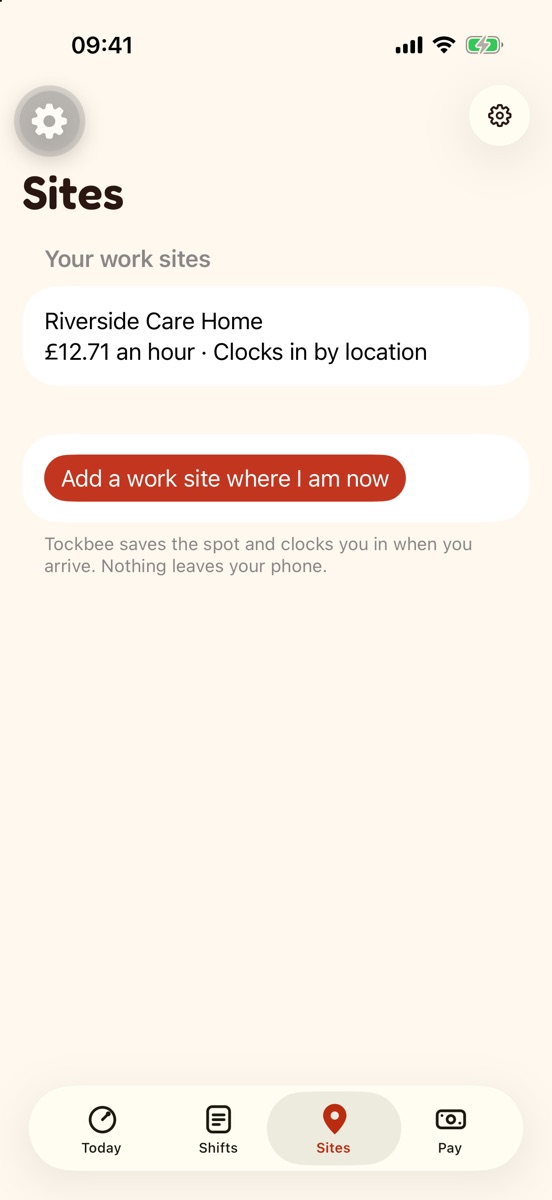
Tockbee clocks you in when you arrive
By location at a work site, or by joining your work Wi-Fi. Every automatic clock-in sends a notification you can undo. The Clock button always works too.
Three ways to clock in
- LocationAround work sites you create. No continuous tracking; your location never leaves your phone.
- Work Wi-FiFor people who would rather not share location.
- The Clock buttonFor the days you would rather tap. Try it on the right.
Your shift, wherever you look
The running shift sits on your Lock Screen and in the Dynamic Island. Rota reminders mean a shift never starts unrecorded.
- Undo, every timeEach automatic clock-in sends a notification you can reverse.
- Live Activity and widgetsFor the Lock Screen, the Dynamic Island and the Home Screen.
- Rota remindersSo a shift never starts unrecorded.
Tockbee, screen by screen
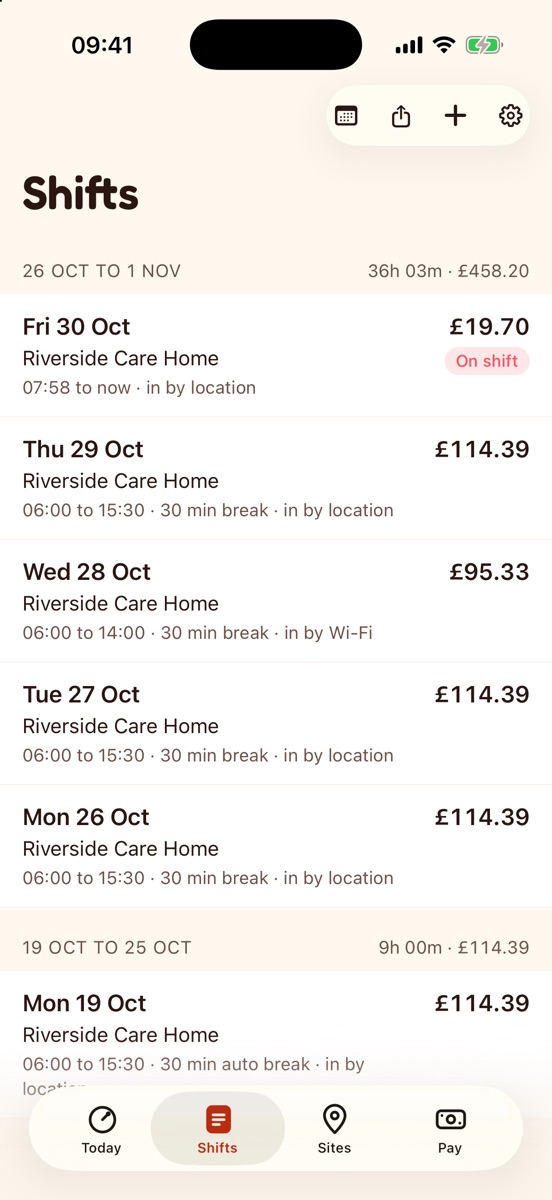
Real screens from the app. Today, Shifts, Pay, Payslip check and Export.
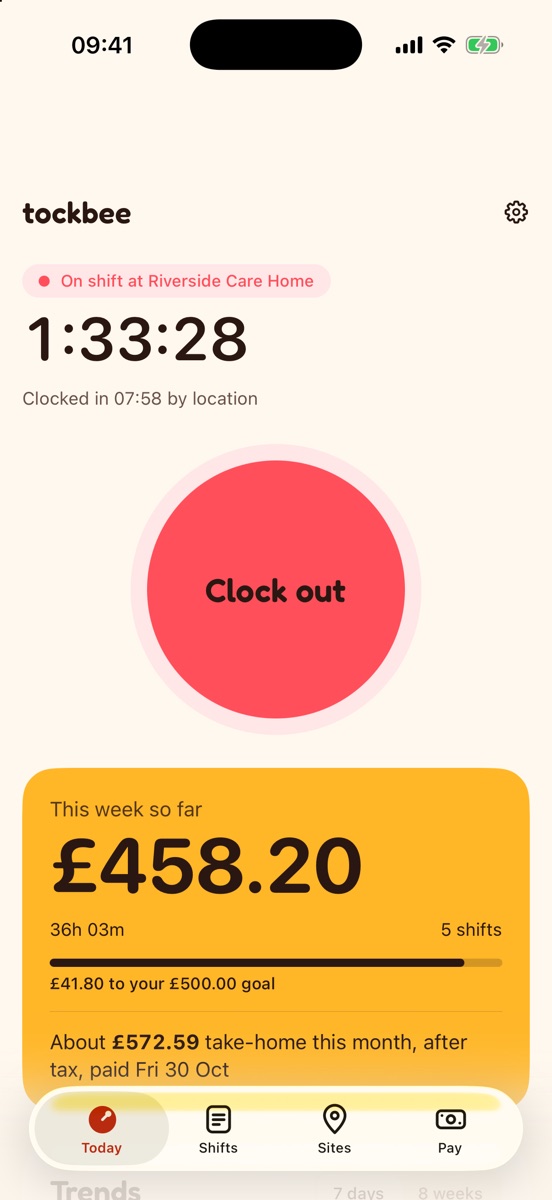
Today
The running shift, the timer and the Clock button.
Shifts
Times, breaks and how each shift was recorded.
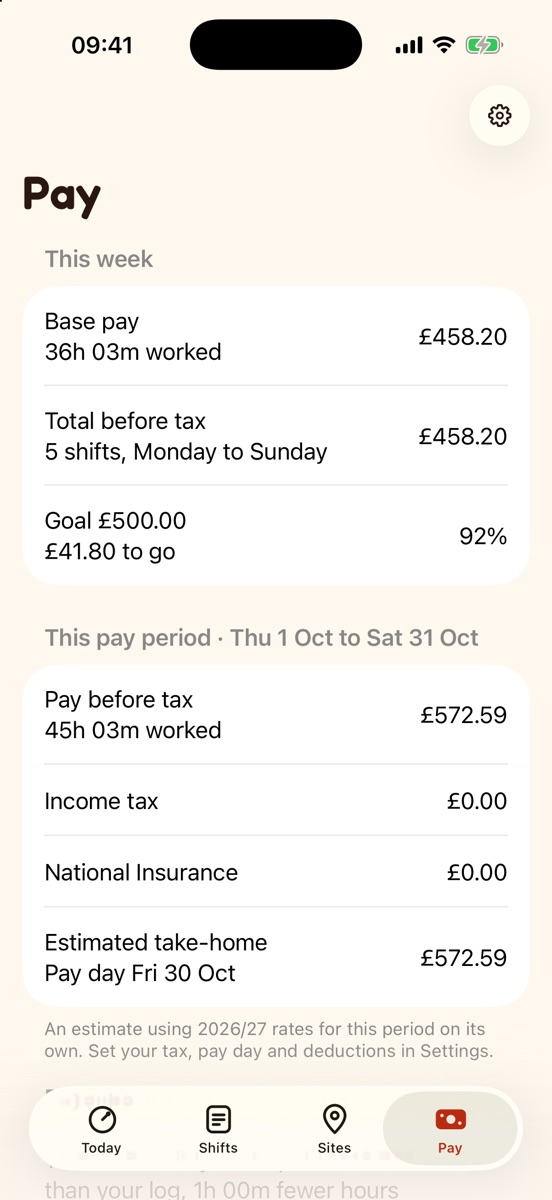
Pay
Gross, overtime and estimated take-home.
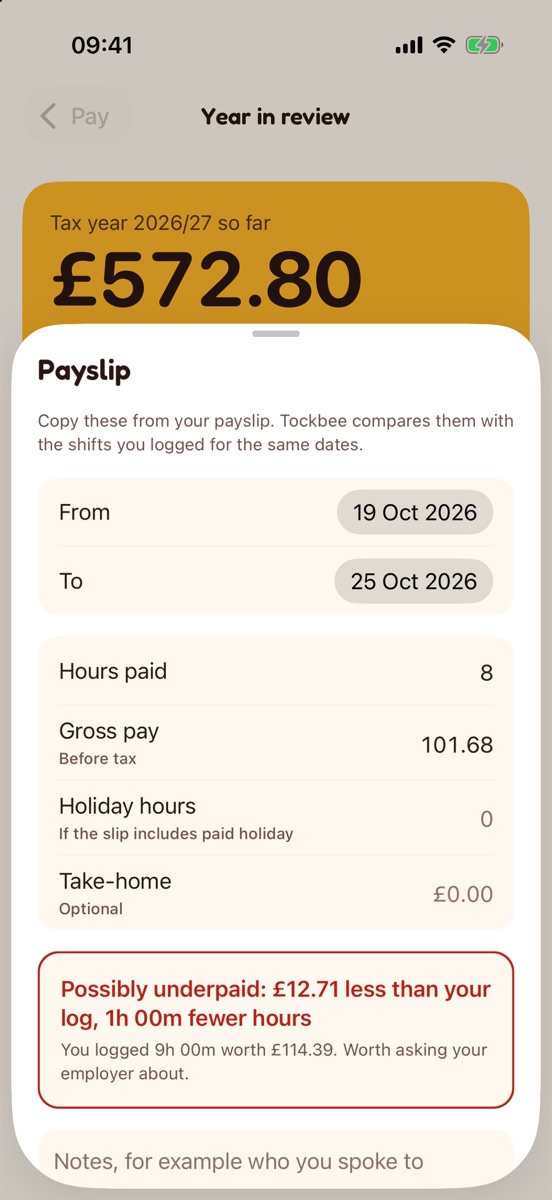
Payslip check
What your payslip says against what you logged.
Questions about Tockbee
More answers on the support page, or write to hello@dotxline.com.
Do I need an account?
No. Open Tockbee and start. There is nothing to sign up for.
Why does Tockbee ask for location “Always”?
Only to notice when you arrive at or leave a work site you created, so it can clock you in and out. There is no continuous tracking and your location never leaves your phone. You can use work Wi-Fi or the Clock button instead.
Are the tax figures exact?
No. Take-home is an estimate after tax, National Insurance, student loan and pension. Your payslip is the official figure.
Where is my data?
In the app’s own storage on your phone. Backups go only to a folder you pick, such as your own iCloud Drive.